前言
随着集群的扩大,原本的nas面临严重的IO压力,尤其是在多个用户的程序在大量从Nas上读数据集的时候,会发生严重卡顿。然而,在大模型时代,数据集已经不像以往几十G就能存下了,动辄上百G,甚至几个T的数据,全都存在本地磁盘又存不下。
于是矛盾出现了:nas能共享,容量够,但IO承载力不够;本地磁盘IO够,但没法共享,而且容量不够。而不同机器上的本地磁盘有不同程度的冗余,能不能把不同机器上的本地硬盘通过光纤互联组成一个大号的逻辑盘呢?
为了解决这个矛盾,zxl经过一番科学上网,发现了beeGFS这个开源的并行文件系统。搭建流程按照官网教程走下来的,中间遇到不少系统层面的问题,借助AI的力量解决。这里记录一下搭建过程。
集群的网络环境
以下信息需要记录在各个机器的/etc/hosts里。同时需要配置ssh免密登录,确保各个机器之前能够ssh免密互通。
192.168.128.80 GPC-08-IB
192.168.128.90 GPC-09-IB
192.168.128.10 GPC-10-IB
192.168.32.16 GPC-06-FIBRE
192.168.32.17 GPC-07-FIBRE
192.168.32.178 GPC-08-FIBRE
192.168.32.47 GPC-09-FIBRE
192.168.32.147 GPC-10-FIBRE
解释:GPC-09代表9号机,-IB后缀代表的是该IP走的是IB网卡,-FIBRE代表该IP走的是光纤。
目前所有机器都有光纤,但只有8,9,10号机器是有IB网卡的。
系统版本
| 节点名称 | 系统版本 | 光纤IP和hostname | IB网卡IP |
|---|---|---|---|
| GPC-06 | Ubuntu20.04 | 192.168.32.16 GPC-06-FIBRE | - |
| GPC-07 | Ubuntu20.04 | 192.168.32.17 GPC-07-FIBRE | - |
| GPC-08 | Ubuntu22.04 | 192.168.32.178 GPC-08-FIBRE | 192.168.128.80 GPC-08-IB |
| GPC-09 | Ubuntu22.04 | 192.168.32.47 GPC-09-FIBRE | 192.168.128.90 GPC-09-IB |
| GPC-10 | Ubuntu22.04 | 192.168.32.147 GPC-10-FIBRE | 192.168.128.10 GPC-10-IB |
方法
第一步:安装需要的依赖(需要在所有机器上上配置)
添加官方的源:wget https://www.beegfs.io/release/beegfs_8.2/gpg/GPG-KEY-beegfs -O /etc/apt/trusted.gpg.d/beegfs.asc
更新apt源(Ubuntu22.04):wget https://www.beegfs.io/release/beegfs_8.2/dists/beegfs-jammy.list -O /etc/apt/sources.list.d/beegfs.list;apt install apt-transport-https;apt update
如果是Ubuntu20.04:wget https://www.beegfs.io/release/beegfs_8.2/dists/beegfs-focal.list -O /etc/apt/sources.list.d/beegfs.list;sudo apt install apt-transport-https;sudo apt update
下载需要的依赖:
sudo apt install beegfs-mgmtd libbeegfs-license # management service; libbeegfs-license is only required to use enterprise features
sudo apt install beegfs-meta libbeegfs-ib # metadata service; libbeegfs-ib is only required for RDMA
sudo apt install beegfs-storage libbeegfs-ib # storage service; libbeegfs-ib is only required for RDMA
sudo apt install beegfs-client beegfs-tools beegfs-utils # client and command-line tools and utilities
如果网络不好,去官方网页版下载好之后上传deb本地安装即可。Ubuntu22.04对应的库,Ubuntu20.04对应的库
第二步:配置管理节点
这里选用8号机作为管理节点
在GPC-08上执行:sudo /opt/beegfs/sbin/beegfs-mgmtd --init
终端会输出日志,说明创建成功:Created new database version 3 at "/var/lib/beegfs/mgmtd.sqlite".
第三部:配置元数据节点
选择9号机作为元数据管理节点。
在GPC-09上执行:sudo /opt/beegfs/sbin/beegfs-setup-meta -p /data/beegfs_meta -s 09 -m GPC-08-FIBRE
解释一下:执行该命令之后,会在/data/目录下创建一个beegfs_meta的文件夹,该文件夹被作为储存元信息的文件夹使用。-s 09是我们给该节点取的名字。 -m后面跟的是hostname,告诉该机器的master是8号机。
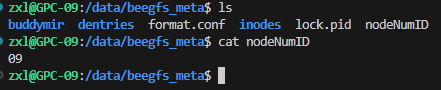
输出如下日志,说明创建成功:
Preparing storage directory: /data/beegfs_meta
* Creating format.conf file...
* Creating server numeric ID file: /data/beegfs_meta/nodeNumID
Updating config file: /etc/beegfs/beegfs-meta.conf
* Setting management host: GPC-08-FIBRE
* Setting storage directory in config file...
* Disabling usage of uninitialized storage directory in config file...
* Fetching the underlying device...
Underlying device detected: /dev/sdb1
Fetching UUID of the file system on that device...
Found UUID 3bc520a2-9301-4789-9c3f-356d41ae28a1
Writing UUID to config file...
* Setting usage of extended attributes to: true
All done.
第四步:配置存储节点
这一步需要在每台机器上分别执行。以10号机为例
在GPC-10上执行:sudo /opt/beegfs/sbin/beegfs-setup-storage -p /data/beefgs_sotrage -s 10 -i 101 -m GPC-08-FIBRE
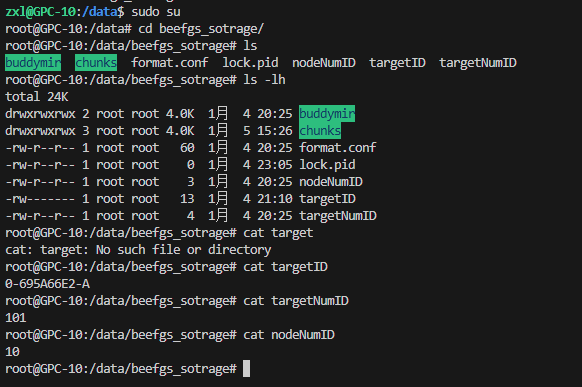
解释一下:执行之后会10号机/data/目录下创建一个beefgs_sotrage的文件夹 ,101表示该节点的第一个储存位置。同理,如果有多个盘,我们可以在其他盘上也创建一个文件夹, -i后面的数字改成102即可。这些符号的本质上是文本,不是数字,只是为了方便命名。
输出以下日志说明创建成功:
Preparing storage target directory: /data/beefgs_sotrage
* Creating format.conf file...
* Creating chunks directory...
* Creating buddymir directory...
* Creating target numeric ID file: /data/beefgs_sotrage/targetNumID
* Creating server numeric ID file: /data/beefgs_sotrage/nodeNumID
Updating config file: /etc/beegfs/beegfs-storage.conf
* Setting management host: GPC-08-FIBRE
* Appending to target directory list in config file...
* WARNING: Skipping append. Target directory seems to be included in current targets list already. ('-f' disables this check.)
* Disabling usage of uninitialized storage targets in config file...
All done.
第五步:配置客户端
这一步需要在每个机器上执行。
注意,默认的beeGFS在8.2版本中自动启用了RDMA,然而6,7号并没有IB网卡,这里先禁用一下客户端的RDMA功能,否则会启动失败。
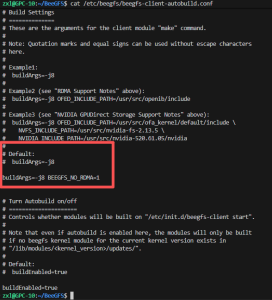
第六步:创建连接认证
在管理节点上创建一个文件即可,执行如下步骤:
sudo dd if=/dev/random of=/etc/beegfs/conn.auth bs=128 count=1
sudo chown root:root /etc/beegfs/conn.auth
sudo chmod 400 /etc/beegfs/conn.auth
然后把该文件/etc/beegfs/conn.auth复制到每一个节点的/etc/beegfs/conn.auth上。
同时,在目录/etc/beegfs下用openssl自签名一个cert.pem和key.pem,并复制到每一台机器上。
自签名执行:sudo openssl req -x509 -newkey rsa:4096 -keyout key.pem -out cert.pem -days 3650 -nodes -subj "/CN=beegfs-cluster"
第七步:启动
sudo systemctl start beegfs-mgmtd # 在管理节点执行
sudo systemctl start beegfs-meta # 在元节点执行
sudo systemctl start beegfs-storage # 在存储节点执行
sudo systemctl start beegfs-client # 在每个机器上执行
通缩systemctl status beegfs-storage命令可以看到储存节点的状态。
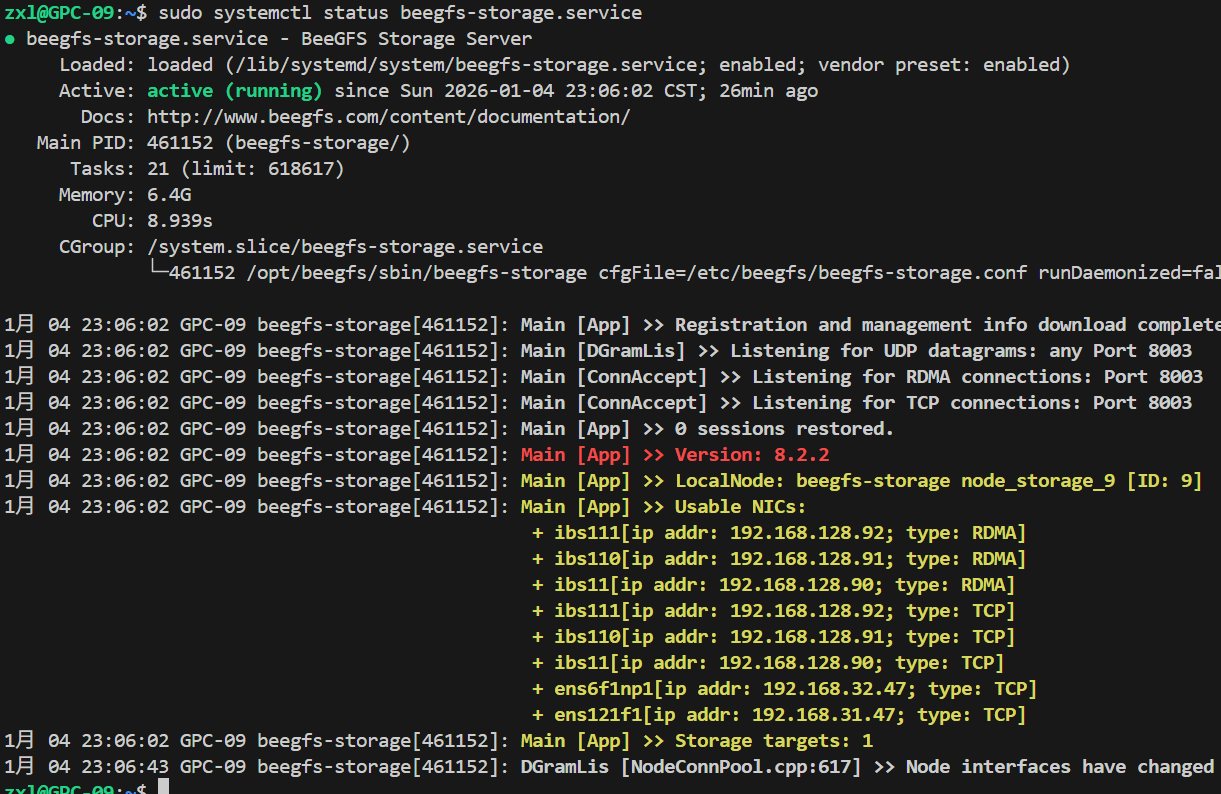
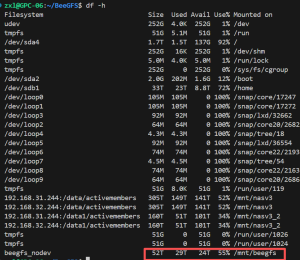
执行过命令sudo systemctl start beegfs-client 之后,可以看到/mnt/下多了一个beegfs nodev,一共52T,可用的24T。可以正常使用了。
最后一步:测一下大文件拷贝速度
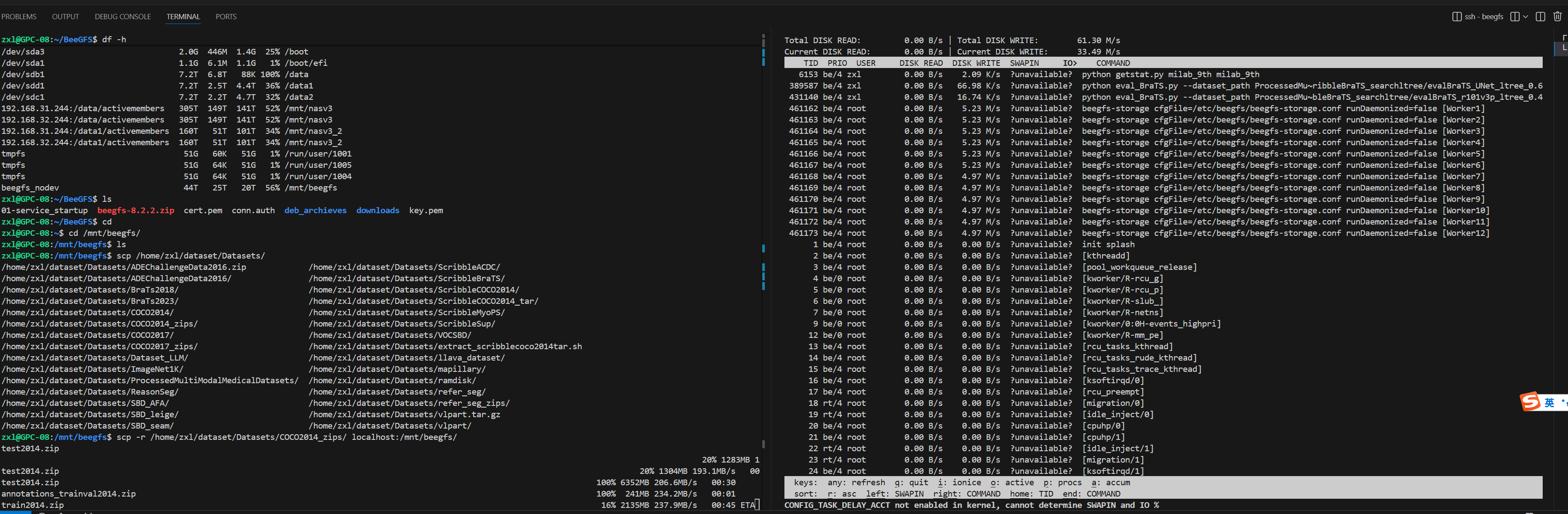
右侧是9号机的负载,左侧是8号机的网络负载,可以看到大文件拷贝速度在234M/s差不多能吃满万兆,单个节点的网络在33M/s,说明beeGFS自动均衡了网络负载。
总结
本文基于现有集群的硬件、网络资源,在不花钱的情况下,搭建了一个并行文件系统。在使用方式上和以往的nas共享路径没差别,完美兼容现有工作流。
后记:PlanA是买一个阵列卡,买固态作为Raid缓存,加到nasv3上面,但价格感人。该方案是PlanB。